
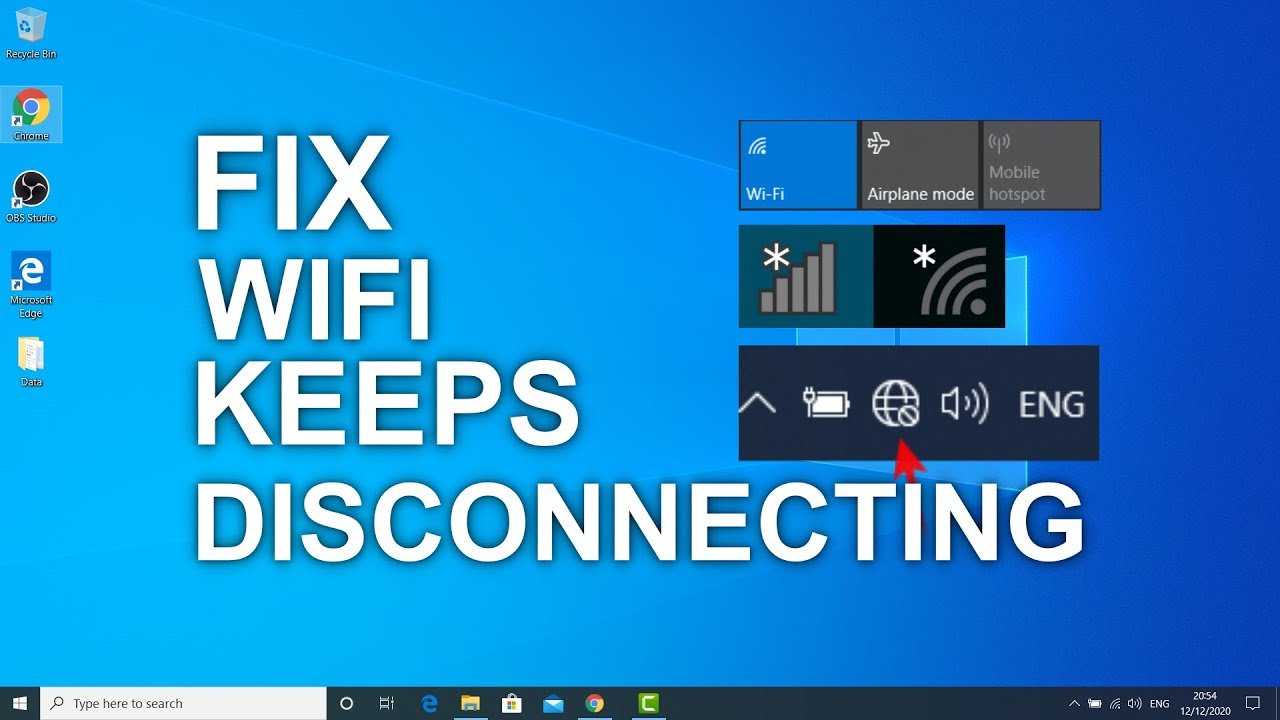
One of the most aggravating things is a Wi-Fi connection that constantly cutting out in the middle of a streaming session, online class, video chat, or file upload. It interferes with everyday living in homes. It has an impact on corporate operations, client communication and productivity in offices.
Wi-Fi that keeps dropping rarely happens by chance. It's usually due to misconfiguration, signal interference, outdated settings or an overcrowded network. Fortunately, the majority of these issues can be resolved without switching service providers or purchasing new equipment.
We'll go over 12 professional-approved solutions in this comprehensive guide to help you get robust, dependable and stable internet. When do it yourself fixes aren't working, professional Wi-Fi setup services can offer a long-term answer.
Why Does WiFi Continue to Disconnect? (Common Root Causes)
It's crucial to comprehend the common causes of erratic Wi-Fi connections before implementing fixes:
- Weak signal coverage
- Incorrect router placement
- Network interference from nearby devices
- Too many connected devices
- Outdated router firmware
- Incorrect frequency band selection
- Poor router configuration
- ISP-side issues
- Power-saving settings for the device
With the right approach, these problems might be fixed because most of them are configuration-related.
Fix #1: Restart Your Router & Modem Properly
Restarting is one of the better options, but it's a difficult process.
✔ Why this works
- Clears temporary memory
- Resets network sessions
- Fixes minor firmware glitches
- Improves device-router communication
✔ Correct restart method
- Turn off both router and modem
- Unplug them from power
- Wait 60 seconds
- Power on the modem first
- Then turn on the router
Many users skip the waiting step, which reduces effectiveness.
Fix #2: Put Your Router in the Right Place
Router placement can make or break Wi-Fi stability.
✔ Ideal placement tips
- Central location in your home or office
- Elevated position (desk or wall mount)
- Open space—not inside cupboards
✔ Avoid placing router near
- Microwaves
- Refrigerators
- Metal furniture
- Thick concrete walls
- Bluetooth devices
Recurring disconnection problems are frequently resolved by expert Wi-Fi setup services by simply moving the router in the proper location.
Fix #3: Choose the Right Wi-Fi Frequency (2.4GHz vs. 5GHz))
Two-band Wi-Fi can be provided by modern routers, however using the incorrect band may result in frequent drops.
✔ 2.4GHz Band
- Longer range
- Better wall penetration
- More interference
- Slower speeds
✔ 5GHz Band
- Faster speeds
- Less interference
- Shorter range
✔ Expert tip
- Use 2.4GHz for distant rooms
- Use 5GHz for quick workloads and nearby devices.
Incorrect band selection is one of the most common causes of Wi-Fi instability.
Fix #4: Update Router Firmware Regularly
✔ Outdated firmware can lead to:
- Random Wi-Fi drops
- Poor performance
- Security vulnerabilities
- Device compatibility issues
✔ What to do
- Log into your router’s admin panel
- Check for firmware updates
- Install updates carefully
- Restart router after updating
If you’re unsure how to do this safely, Wi-Fi Setup Services can handle firmware updates without risk.
Fix #5: Reduce Network Overload
Your router may get overloaded if too many devices are connected at once.
✔ Common connected devices
- Smartphones
- Laptops
- Smart TVs
- CCTV cameras
- Smart home devices
- Gaming consoles
✔ Solutions
- Disconnect unused devices
- Limit background downloads
- Schedule heavy usage during off-peak hours
- Enable bandwidth control if available
In offices, unmanaged network load is a major reason Wi-Fi keeps disconnecting.
Fix #6: Change Wi-Fi Channel to Avoid Interference
Nearby Wi-Fi networks vie for space in apartments and business buildings.
✔ Symptoms of channel interference
- Wi-Fi drops during evenings
- Slow speeds at specific times
- Sudden disconnections
✔ How to fix
- Log into router settings
- Manually select a less crowded channel
- Avoid “Auto” if it’s unstable
Channel optimization is a standard step in professional Wi-Fi Setup Services.
Fix #7: Secure Your Wi-Fi Network
Wi-Fi that is unprotected or inadequately secured permits unwanted access.
✔ Signs of security issues
- Unknown devices connected
- Sudden speed drops
- Router overheating
✔ Best security practices
- Use WPA2 or WPA3 encryption
- Set a strong password
- Disable WPS if not needed
Securing your network improves both performance and stability.
Fix #8: Check for ISP-Related Issues
Sometimes the issue is outside your home or office.
✔ How to test
- Connect a device via Ethernet cable
- Run speed tests
- Monitor connection drops
If wired internet also disconnects, contact your ISP—it may be a line or area issue.fg
Fix #9: Update Wi-Fi Drivers on Your Devices
✔ Outdated network drivers can cause:
- Frequent disconnections
- Slow reconnections
- Compatibility issues
✔ Devices to check
- Laptops
- Desktop PCs
- USB Wi-Fi adapters
Keeping drivers updated ensures smoother communication with your router.
Fix #10: Disable Power-Saving Wi-Fi Settings
Some devices automatically reduce Wi-Fi performance to save battery.
✔ Common symptoms
- Wi-Fi disconnects during inactivity
- Drops during video calls
- Slow reconnections
✔ Solution
- Set Wi-Fi adapters to maximum performance
- Disable aggressive power-saving modes
This fix is especially important for laptops and mobile devices.
Fix #11: Optimize Router Settings (Without Buying New Hardware)
Most routers ship with default settings that are not optimized.
✔ Advanced optimizations
- Enable Quality of Service (QoS)
- Prioritize work or office devices
- Adjust MTU size
- Disable unused features
A well-configured router delivers better speed and stability. This is where expert Wi-Fi Setup Services truly shine.
Fix #12: Get Professional Wi-Fi Setup Services
If Wi-Fi keeps disconnecting despite trying all fixes, it’s time for expert help.
✔ What Wi-Fi Setup Services include
- Complete network diagnostics
- Router & modem configuration
- Signal strength optimization
- Firmware and security setup
- Dual-band and channel optimization
- Mesh Wi-Fi setup for large areas
- Office and multi-floor Wi-Fi planning
- Dead-zone elimination
Professional setup ensures long-term stability, not temporary fixes.
When Should You Definitely Call a Wi-Fi Expert?
Take into account expert Wi-Fi setup services if:
- Wi-Fi disconnects daily
- Internet speed doesn’t match your plan
- Multiple users complain of drops
- Office productivity is affected
- Smart devices keep going offline
Time is saved, frustration is decreased, and recurrent problems are avoided with expert setup.
Final Thoughts
A Wi-Fi connection that keeps disconnecting is frustrating but it’s rarely unsolvable. In most cases, the problem lies in placement, interference, outdated settings or poor configuration, not your internet plan.
Using these 12 professional fixes, you can:
- Achieve strong and stable Wi-Fi
- Reduce disconnects
- Improve speed and reliability
- Enjoy seamless work and entertainment
Professional Wi-Fi Setup Services offer a safe, efficient and future ready internet experience for both homes and offices when do it yourself troubleshooting is insufficient.