
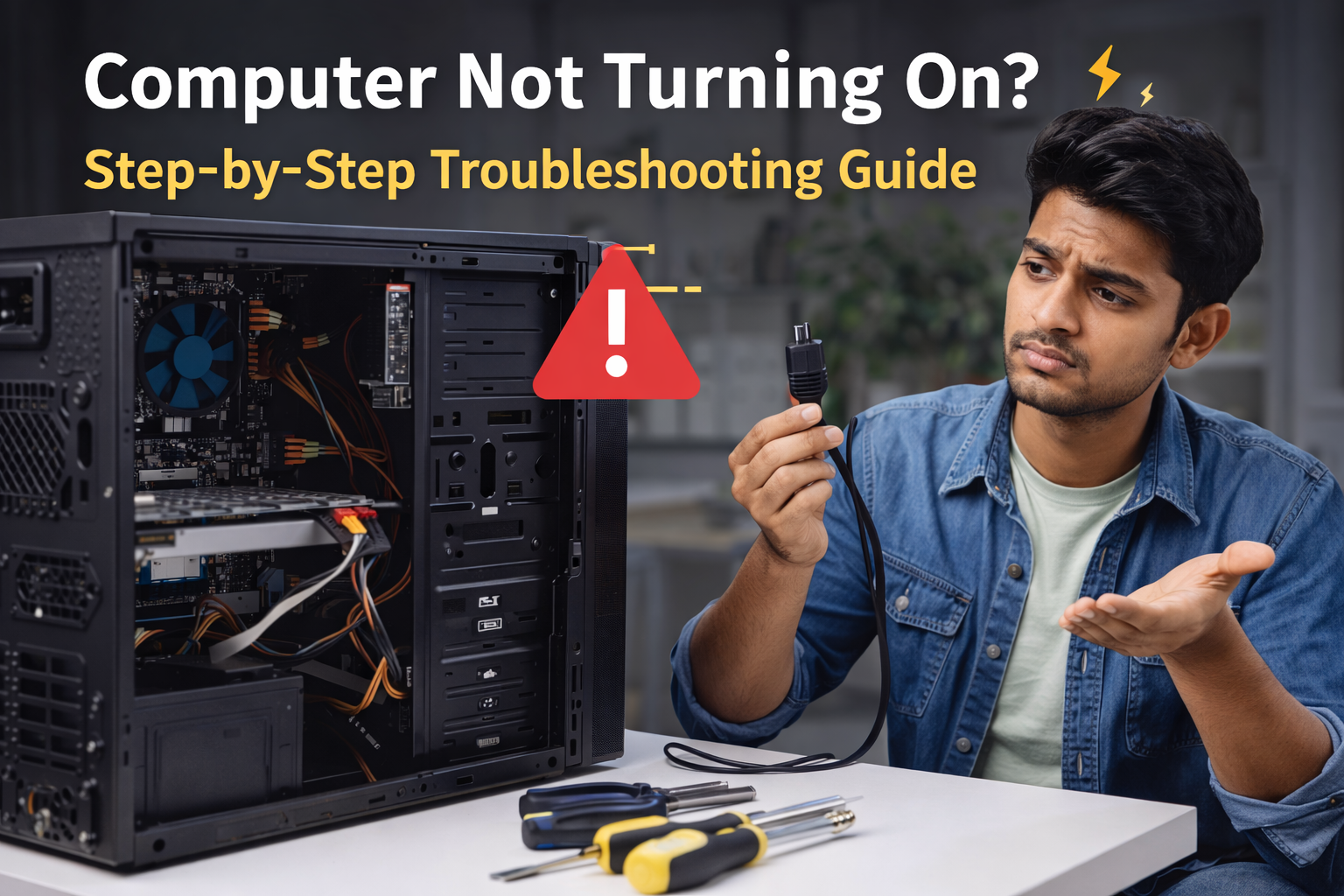
There’s almost nothing more aggravating than pushing the power button of your computer and getting an absolute zero return of light, fan or screen activity. For many who use their computers to do business, attend classes and perform daily activities, having a computer that will not turn on is akin to a disaster.
The good news? Typically, the source for a computer not turning on is due to a fairly simple reason that you can diagnose and sometimes repair on your own.
Use this information as a kind of road map to assist you diagnose the no-power problem instead of sending your system straight to a repair shop. By using this book as an educational reference, you will be able to perform inspection work independently; using the basic and advanced techniques demonstrated to diagnose the cause of the no-power problem. Once you understand what is wrong with your computer and have determined how to fix it and you can use your findings to develop an effective solution to correct the problems.
Step 1: Examine the power source (the most frequent problem)
Always start with the fundamentals before assuming something major is wrong.
✔ For Desktop Computers
- Make sure the power wire is securely inserted into the wall socket and CPU cabinet.
- The socket itself can be damaged, so try using an alternative wall outlet.
- Instead of using a UPS or surge protector, plug the computer straight into the wall.
- Verify that the CPU's power supply switch (0/I) is turned on (I).
✔ For Laptops
- After plugging in the charger, check to see if the charging LED illuminates.
- Try a different power adaptor or charger if one is available.
- If the battery is detachable, remove it, connect the charger and try to turn it on.
- Examine the charging port for any accumulated dust or loose connections.
Tip: Many laptops won’t power on if the battery is completely drained and the charger isn’t working properly.
Step 2: Look for Signs of Life
Press the power button and observe carefully.
- Do you hear fans spinning?
- Are there indicator lights on the keyboard or power button?
- Do you hear beep sounds?
- Does the screen remain completely black?
These signs help narrow down whether the issue is related to power, display or internal hardware.
Step 3: Examine the Screen (It May Be On!)
There are instances when the computer is operating but nothing is shown on the screen.
✔ How to Proceed
- Especially on laptops, increase the screen's brightness.
- HDMI or VGA can be used to connect an external display.
- Verify that the display has the correct input source configured and is switched on.
- The monitor cable should be repositioned on both ends.
If an external monitor works, the issue is likely with:
- Laptop display panel
- Display cable
- Backlight or inverter
Step 4: Perform a Power Reset (Very Effective)
A power reset clears residual electrical charge that may prevent startup.
✔ How to Power Reset
- Shut down the PC.
- Unplug the power, USB devices, monitor, keyboard and mouse cables.
- Take out your laptop's detachable batteries.
- For twenty to thirty seconds, keep the power button depressed.
- Try turning it on after reconnecting just the power wire.
The frequency with which this little step works surprises a lot of consumers.
Step 5: Disconnect External Devices
Faulty peripherals can block startup.
✔ Remove These Devices
- USB drives
- External hard disks
- Printers
- Webcams
- Memory card readers
- External keyboards or mice
Once disconnected, try powering on again.
If the PC starts, reconnect devices one at a time to identify the culprit.
Step 6: Listen for Beep Codes or Error Lights
Some desktops and laptops use beep codes or LED patterns to indicate hardware errors.
✔ Common Meanings
- Repeated beeps: RAM problem
- No beeps, no power: Power supply or motherboard issue
- One long, two short beeps: Graphics card issue
✔ If you hear beeps:
- Note the pattern
- Check the manufacturer’s documentation online for exact meanings
Step 7: Check RAM (Very Common Hardware Failure)
Loose or faulty RAM is a leading cause of startup failure.
✔ How to Reseat RAM (Desktop/Laptop)
- Turn off and unplug the computer.
- Open the cabinet or back panel.
- Remove RAM sticks carefully.
- Clean contacts with compressed air.
- Insert one RAM stick at a time and try powering on.
If your PC starts with one stick but not another, you’ve found the faulty module.
Step 8: Inspect the Power Supply (Desktop PCs)
If your desktop shows no lights or fan movement, the power supply may be faulty.
✔ Signs of a Bad Power Supply
- Burning smell
- Clicking sound
- No response at all when pressing power button
✔ What You Can Do
- Check if the power supply fan spins briefly
- If one is available, test using a power supply that is known to function.
⚠️ Warning: Do not open the power supply unit—it stores dangerous voltage.
Step 9: Check Internal Connections
Loose internal cables can stop the system from powering on.
✔ Inspect These Connections
- Motherboard power cable (24-pin)
- CPU power connector (4-pin or 8-pin)
- Power button cable from cabinet to motherboard
- Graphics card seating
Even slightly loose connectors can cause complete startup failure.
Step 10: Remove Recently Installed Hardware or Software
If the issue started after an upgrade:
- Remove newly added RAM, SSD, GPU, or expansion cards
- Disconnect new internal drives
- Reset BIOS/UEFI settings if possible
Hardware incompatibility or incorrect installation can prevent booting.
Step 11: Check for Overheating Damage
Excessive heat can permanently damage components.
✔ Warning Signs
- Computer shut down suddenly and never turned on again
- Loud fan noise before failure
- Burn marks or melted smell
If overheating is suspected, professional inspection is recommended.
Step 12: BIOS or Motherboard Failure
If everything else checks out, the problem may be serious.
✔ Possible Causes
- Dead motherboard
- Corrupted BIOS
- Short circuit due to power surge
✔ Symptoms include:
- Power light turns on briefly then off
- Fans spin but no display
- No beeps or response
At this stage, repair or replacement is often the only solution.
When Should You Call a Professional?
You should seek expert help if:
- The system still won’t turn on after all steps
- You suspect motherboard or CPU failure
- There’s physical damage or burning smell
- Laptop charging port is loose or damaged
Professional technicians have tools to test power, motherboard signals, and component health accurately.
How to Prevent Computer Power Issues in the Future
- Use a surge protector or UPS
- Clean dust every 3–6 months
- Avoid cheap or duplicate chargers
- Shut down properly instead of force-powering off
- Keep liquids away from your system
- Monitor system temperature regularly
Final Thoughts
A computer that won’t turn on doesn’t always mean expensive repairs. In many cases, the issue is something simple—like a loose cable, drained battery, or faulty peripheral.
By following this step-by-step troubleshooting guide, you can confidently identify the cause, fix minor problems yourself, and know exactly when professional help is needed.