
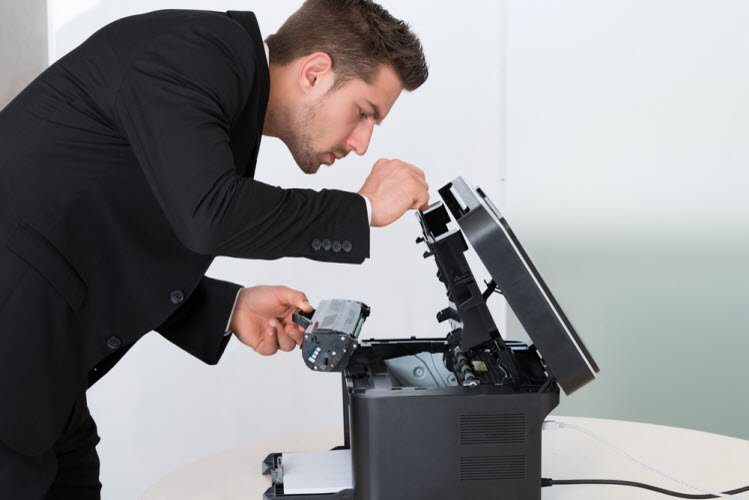
Printers are still necessary for both home and office duties in the current digital era, whether printing bills, school assignments, business thoughts, or vital papers.pts or bills. One thing, though, irritates everyone: nothing happens when you hit the print button.
There are a number of reasons why a printer won't print, ranging from straightforward connection issues to more serious software or hardware issues. What's good? The fast troubleshooting procedures in this tutorial can help you resolve the majority of these problems on your own.
The quickest approach to get your printer working again is to get in touch with expert printer setup services if you're still having trouble after attempting these fixes.
1. Check Basic Connections First (It Solves 50% of Issues!)
Start with basic checks before delving into more complex troubleshooting you'll be surprised how frequently they resolve the problem right away.
✔ Is the Printer Turned On?
Make sure the power line is securely connected in and that the printer's display lights are on.
✔ USB or Network Cable Connected?
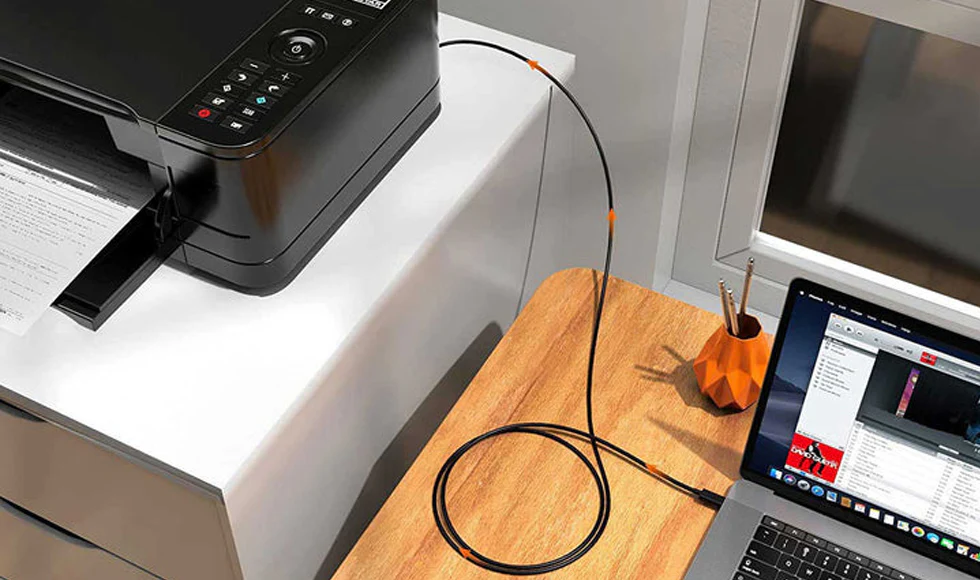
Verify that the USB or Ethernet cable for wired printers is completely placed into the printer and computer.
✔ Do You Share a Network with Wi-Fi Printers?
The majority of printing issues at home and at work are caused by the printer and computer being linked to separate Wi-Fi networks.
- Make that the network name (SSID) of each devices is the same.
- If the printer keeps disconnecting, restart the router.
In order to maintain network printing Consider using expert printer setup services if your Wi-Fi printer frequently loses connectivity.
2. Check Printer Status in Your Computer
Your computer may be able to identify a problem before you do.
✔ Windows Users
- Go to Printers & Scanners under Settings under Devices.
- Select your printer
- Check if it says:
- Offline
- Paused
- Error
✔ Mac Users
- Go to System Preferences → Printers & Scanners
- Choose your printer
- Check if any warnings appear (yellow dot / error symbol)
If stuck on "Hold for Authentication," reset the printer queue.

3. Clear the Print Queue (Stuck Jobs Block New Prints)
A single corrupted print job can stop all future printing, especially in office environments.
✔ Windows Steps:
- Open Control Panel
- Navigate to Printers and Devices
- Right-click your printer → See what's printing
- Click Cancel All Documents
✔ Mac Steps:
- Open Printers & Scanners
- Select printer → Open Print Queue
- Cancel stuck jobs
If print jobs keep jamming regularly, your system may need configuration support from a professional printer setup services provider.
4. Check Ink or Toner Levels (Your Printer May Be Out of Supply)
✔ Your printer may not print because:
- Ink levels are too low
- Toner cartridge is empty
- Cartridges are not installed properly
- Cartridge heads are clogged (common with inkjets)
✔ How to check supply levels:
- On the printer display menu
- Using the app provided by the manufacturer (HP Smart, Canon Print, Epson iPrint, Brother iPrint&Scan)
- On your computer’s printer settings dashboard
✔ If printing is faded or blank:
- Clean printheads
- Shake toner cartridge gently before reinstalling
5. Update or Reinstall Printer Drivers
Outdated or corrupted drivers often cause printing failures.
✔ Signs of driver issues:
- Printer constantly shows “Offline”
- Printing never starts
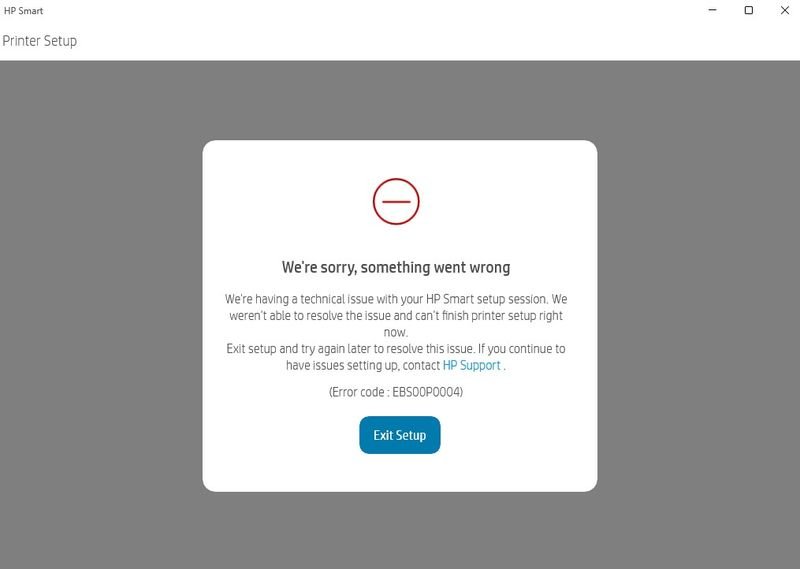
- Strange error codes
- Printer not detected after Windows/Mac update
✔ Fix:
- Visit your printer brand’s official website
- Download the newest drivers
- Install them manually
If you have installed multiple printer models in the past, conflicting drivers may exist. In this case, getting help from expert printer setup services is recommended.
6. Check Paper Status & Printer Hardware
Sometimes the problem is physical, not digital.
✔ Common issues:
- No paper in tray
- Paper jam inside printer
- Incorrect paper size
- Dust or debris inside roller area
- A tray not pushed in completely
- Cover or door left open
✔ How to check:
- Open all access doors
- Remove jammed paper gently
- Avoid tearing paper — small pieces inside cause further jams
- Load correct-sized paper (A4, Letter, Legal)
7. Restart Everything (Printer, Computer & Router)
✔ A full restart resolves temporary glitches in:
- Network connection
- Software communication
- Power supply
- Driver operations
✔ Restart Sequence for Best Results:
- Turn OFF printer
- Restart router
- Restart computer
- Turn printer ON again after 30 seconds
This resets your printing ecosystem and often fixes Wi-Fi disconnect issues.
8. Resolve Wireless Printer Connectivity Problems
Wireless printers are the most convenient — and sometimes the most unpredictable.
✔ Top Wi-Fi printing problems:
- Printer showing “Offline”
- Printer not discoverable
- Intermittent connection drops
- Slow printing over network
- Router too far away
- 5GHz Wi-Fi is not compatible with printers (many models only operate on 2.4GHz).
✔ Fast Fixes:
- Attach the printer to a 2.4GHz wireless network.
- Move printer closer to router
- Disable VPN on your computer (it blocks local network devices)
- Use WPS mode if available
- Reconnect printer by running wireless setup again
If your Wi-Fi printer continuously disconnects, a professional printer setup services expert can optimize your network configuration.
9. Fix Mobile Printing Issues (iPhone, Android)
✔ Common App Issues:
- AirPrint not working on iPhone
- Mopria/Google Cloud Print errors on Android
- Printer not detected in mobile app
- Printing stuck at “Sending to printer”
✔ Solutions:
- Ensure phone & printer use same Wi-Fi
- Restart printer app
- Update mobile OS
- Reinstall manufacturer’s printing app
10. Look for updates to the firmware.
As with PCs and phones, printers need to be upgraded.
✔ Why firmware updates matter:
- Fix wireless issues
- Improve compatibility
- Prevent bugs
- Enhance performance
✔ Firmware can be updated through:
- Printer menu settings
- Manufacturer’s desktop app
- Mobile printing app
If a firmware update gets stuck, avoid resetting — contact printer setup services immediately to avoid bricking the device.
11. Advanced Issues That May Require Professional Help
Sometimes, problems are beyond basic troubleshooting:
- Printer not recognized by any device
- Frequent paper jams even after cleaning
- Ink always smudging on paper
- Faint or inconsistent print quality
- Strange noises or grinding sounds
- Network printers not working across multiple devices
- Office printers causing repeated system errors
In these cases, an expert technician can diagnose internal hardware, driver conflicts, or network issues.
This is where professional printer setup services can save you time and prevent unnecessary repairs or replacements.
12. When to Contact Printer Setup Services
It's time to seek professional help if you have attempted all of the previous solutions and your printer is still not printing.
✔ A printer setup expert can help you with:
- Full printer installation & configuration
- Wi-Fi printer setup & troubleshooting
- Driver repair and system optimization
- Network printer sharing for home & office
- Fixing offline printer issues
- Resolving print spooler failures
- Improving printing speed & quality
- Preventing repeated jams or errors
A quick service session can bring your printer back to perfect working condition — without wasting hours trying random fixes.
Conclusion
The majority of printing problems may be resolved using a straightforward, systematic troubleshooting strategy, despite the fact that printers may appear complex. The issue is typically fixed by looking at connections, print queues, drivers, ink levels and network settings.
Relying on expert printer setup services, however, guarantees that your house or workplace printer operates smoothly, effectively and dependably every day if the problem continues or recurs.